At some point, you’re going to open a PDF and think, “I just need to change one thing.” Maybe it’s a typo, an updated date, or a new image. The good news? You can edit PDFs directly in InDesign and there are two easy ways to do it.
Option 1: Open the PDF in InDesign
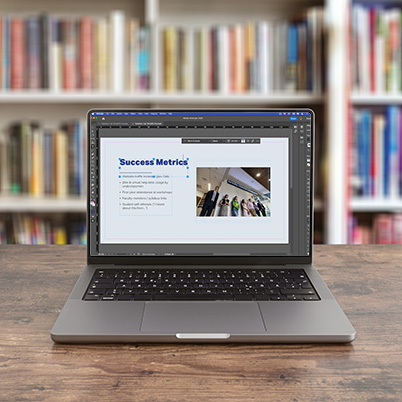
The quickest way to make a PDF editable is to go to File > Open and select your PDF.
When you do this, InDesign converts the PDF into an editable document. You’ll be able to:
- Click into text and edit it
- Move or replace images
- Adjust layouts if needed
You may notice that some text boxes or text wraps need a little cleanup, but overall, this method gives you full control over the content.
Option 2: Place the PDF into a New Document
Another option is to use File > Place. When you select your PDF, InDesign will ask if you want to ‘place’ it or ‘open’ it.
Placing a PDF is useful when:
- You want to rebuild or redesign around existing content
- You’re pulling in pages as part of a larger project
- You only need to edit specific elements
What Kind of PDFs Work?
These methods work with PDFs created in lots of common tools, including:
- Adobe Express
- Microsoft Word
- PowerPoint
InDesign can even read things like gradients and tables, which makes it great for polishing up projects.
PDFs that are password-protected, digitally signed, or corrupted can’t be opened or edited this way.