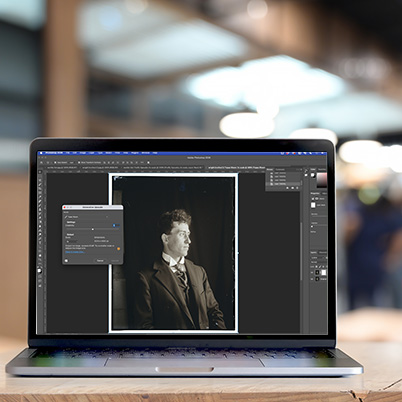
Have an image that looks fuzzy, pixelated, or just not quite there? Photoshop’s AI Image Upscaler can help you quickly turn low-quality images into clean, high-resolution assets that are ready for class projects, posters, social media, or portfolios.
This tool is especially useful when you’re working with older images, screenshots, or graphics pulled from the web that need a quality boost.
Steps:
- Open your image in Photoshop, or click Import Image from the Contextual Task Bar.
- Go to the top menu and choose Image > Generative Upscale.
- Select an upscaling model:
- Firefly Upscaler (included)
- Topaz Gigapixel (premium only)
- Topaz Bloom (premium only)
- In the new window, choose your output size (2× or 4×) and adjust any available settings.
- Click Upscale.
Photoshop will create a new document with your enhanced image, automatically renamed so you can easily tell it apart from the original.
00:38 Generative Upscale
00:54 Firefly vs Partner Models to upscale
01:43 Comparing before and after
02:50 Using a partner model Topaz Bloom