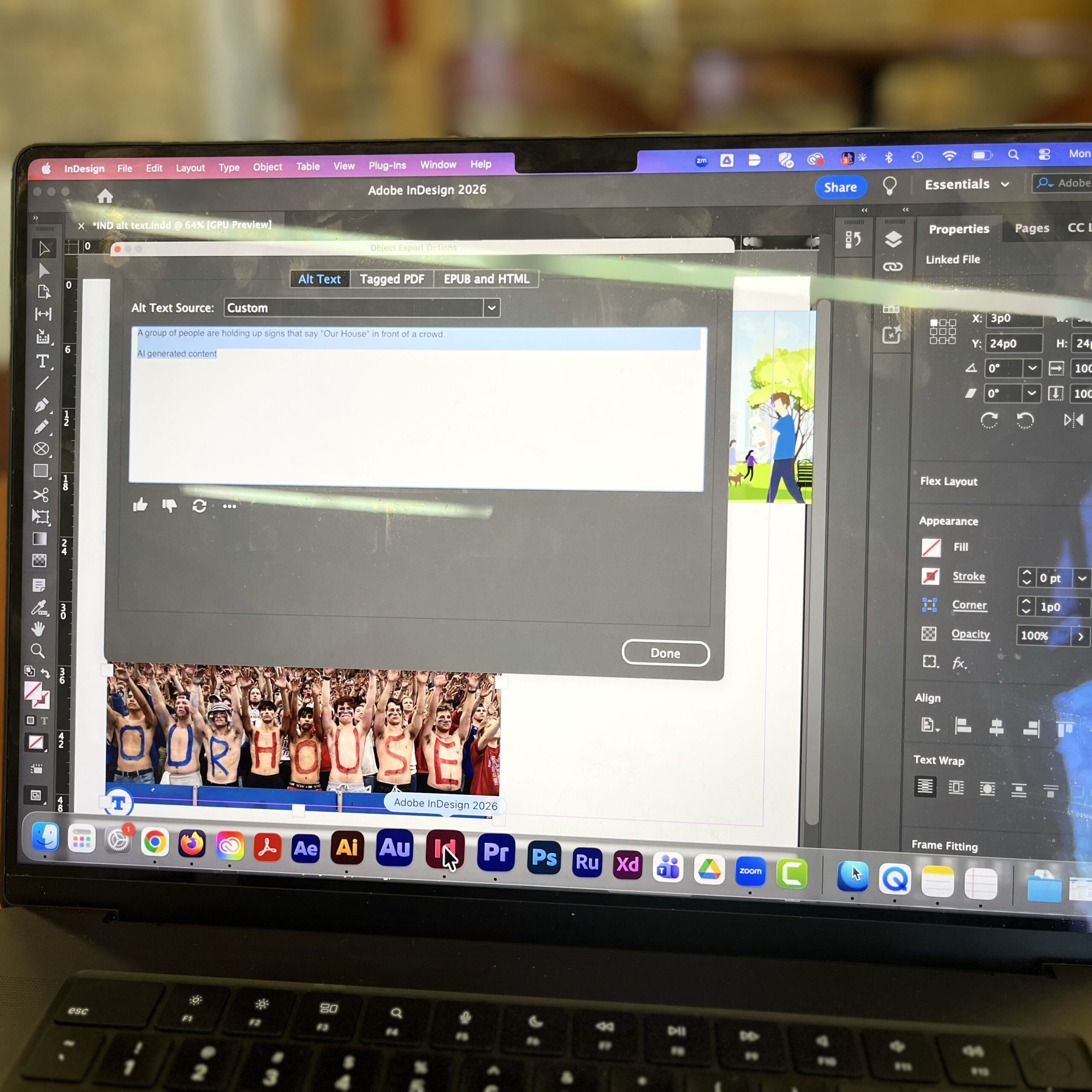
Creating accessible designs is an important part of being a modern designer — and InDesign now makes it easier by helping you generate alt text automatically for images.
Alt text (alternative text) describes images so screen readers can communicate visual content to people who can’t see it. This is especially important for PDFs, digital publications, portfolios, and web-ready documents.
Let’s look at how to use this feature.
Automatically generate alt text when placing images
- Open an InDesign document
- Place an image in your layout
- Look for the generated text icon at the bottom of the image frame
That icon means InDesign has automatically created alt text for the image.
If you want to review or edit it:
- Hold Alt (Windows) or Option (Mac)
- Click the generated text icon
- The Object Export Options panel will open so you can edit the description
You can also click Regenerate to create a new version of the alt text.
Select Done when finished.
Important things to know
- Alt text generation currently works in English only
- It uses the language set in the document’s Basic Paragraph style
- Each alt-text generation may use a Generative AI credit (depending on your account)
- This feature is often enabled automatically
Even though the text is generated for you, it’s always a good idea to review and revise it for clarity and accuracy.
Turn automatic alt text on or off
If you want to control this feature:
Windows:
File > Preferences > Generative AI
Mac:
InDesign > Preferences > Generative AI
Then toggle:
- Auto-generate Alt Text when placing images
- AI-generated content tag
Generate alt text manually
You can also create alt text yourself at any time.
- Place an image in your document
- Go to Object > Object Export Options
- Under Alt Text Source, choose Custom
- Click Alt Text to generate or write your own description
- Select Done
Using alt text is a small step that makes a big difference. As you build portfolios, publish PDFs, or create digital content, accessible design helps ensure everyone can experience your work.
00:32 Why alt text is important
01:16 Generate alt text automatically
02:12 Viewing, editing and regenerating alt text
02:53 Turn off automatic alt text
03:31 Write your own alt text