If you’ve ever created something in Illustrator and then realized you want to finish the layout in InDesign, good news — you can actually open Illustrator files directly in InDesign and edit them there.
Here’s how it works.
Illustrator files can contain an embedded PDF version of the artwork. When that PDF information is included, InDesign can read the file and convert it into an editable InDesign document.
Step 1: Save the Illustrator file correctly
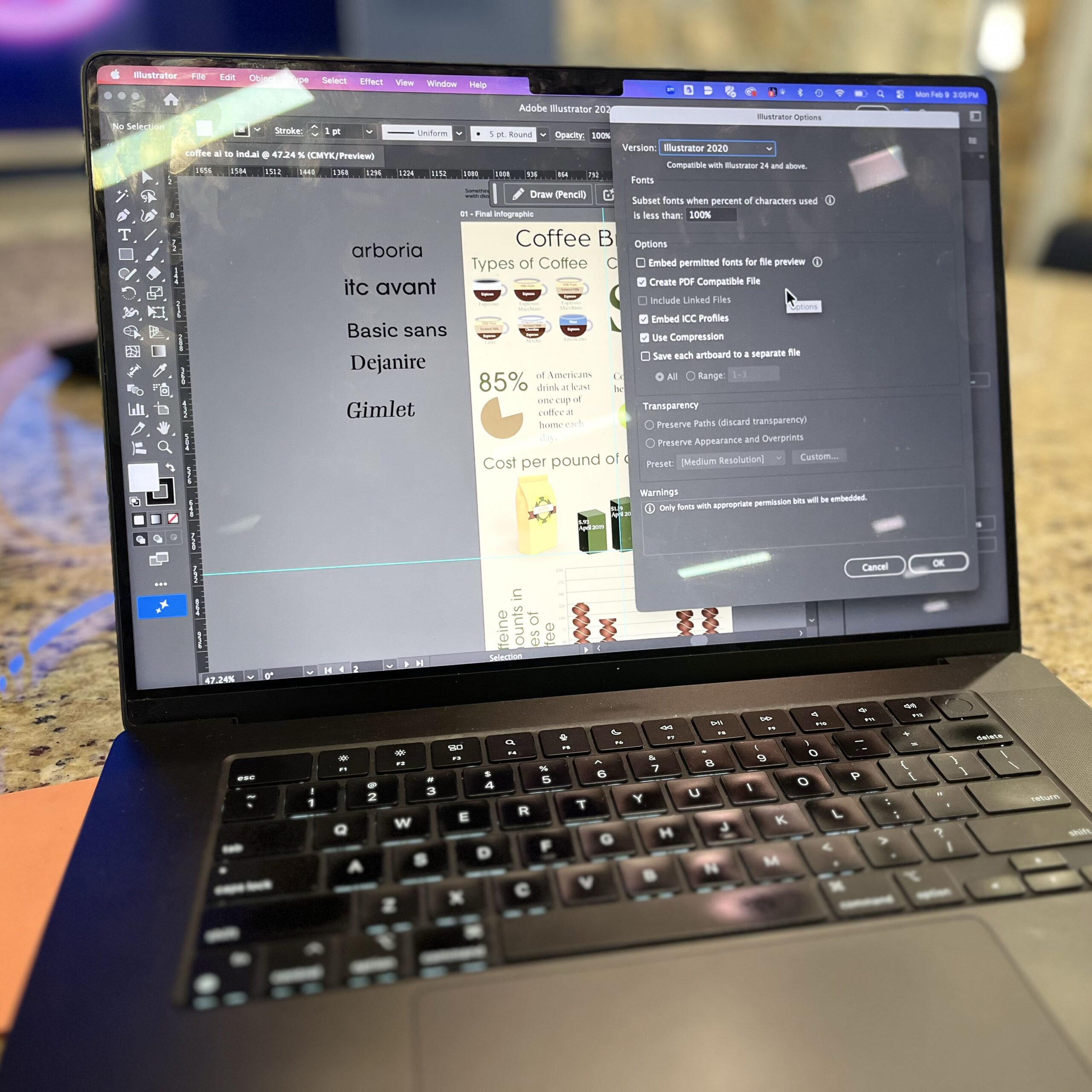
Before opening the file in InDesign, make sure it was saved with Create PDF Compatible File turned on.
In Illustrator:
File > Save As > Check “Create PDF Compatible File.”
This step is essential — without it, InDesign won’t be able to open the file.
Step 2: Open the file in InDesign
Now you’re ready to bring the file into InDesign.
- Open Adobe InDesign
- Go to File > Open
- Select the .ai file
- Click Open
InDesign will convert the file into an editable layout, allowing you to adjust text, images, and objects directly in InDesign.
When this won’t work
InDesign can’t open files that are:
- Unsupported formats
- Digitally signed PDFs
- Password-protected PDFs
- Corrupted files
If you run into issues, try re-saving the Illustrator file with PDF compatibility enabled.
00:30 Why open an Illustrator file in InDesign?
01:01 Making sure you save a PDF compatible file
01:30 Opening and editing in InDesign